Authoring Docs
This reference covers how to create new pages, write content, and update the navigation menu. It assumes you can build and run the site locally.
Before starting
Start the live-reload dev server to preview changes in real time:
source .venv/bin/activate
mkdocs serve
1. Create the page
Pages are plain Markdown files under docs/. Place the file in the subfolder that matches its
audience:
| Audience | Folder | Example |
|---|---|---|
| Developers | docs/developers/ |
docs/developers/api-reference.md |
| Implementers | docs/implementers/ |
docs/implementers/backup-runbook.md |
| End users | docs/users/ |
docs/users/booking-an-appointment.md |
Create the file with a single H1 - the H1 is the page title:
# Booking an Appointment

Short intro sentence describing what this page covers.
One H1 per page
Use exactly one # heading per page. Structure the rest with ## and ###. A second H1
breaks the on-page table of contents.
2. Add content
Write plain, declarative prose. Use these building blocks rather than ad-hoc formatting.
Headings and the table of contents
## and ### headings automatically populate the right-hand table of contents and get
permalink anchors.
Admonitions (callouts)
Use Material admonitions instead of bold-text shouting:
!!! note
    Background information the reader may want.

!!! warning
    Something that can cause data loss or a broken deployment.
Code blocks
Fenced code blocks get syntax highlighting and a copy button:
```bash
docker compose up -d
```
Images
Save screenshots into docs/assets/images/ and reference them by relative path:

The ../ walks up from the page's folder to docs/. Keep PNGs reasonably compressed.
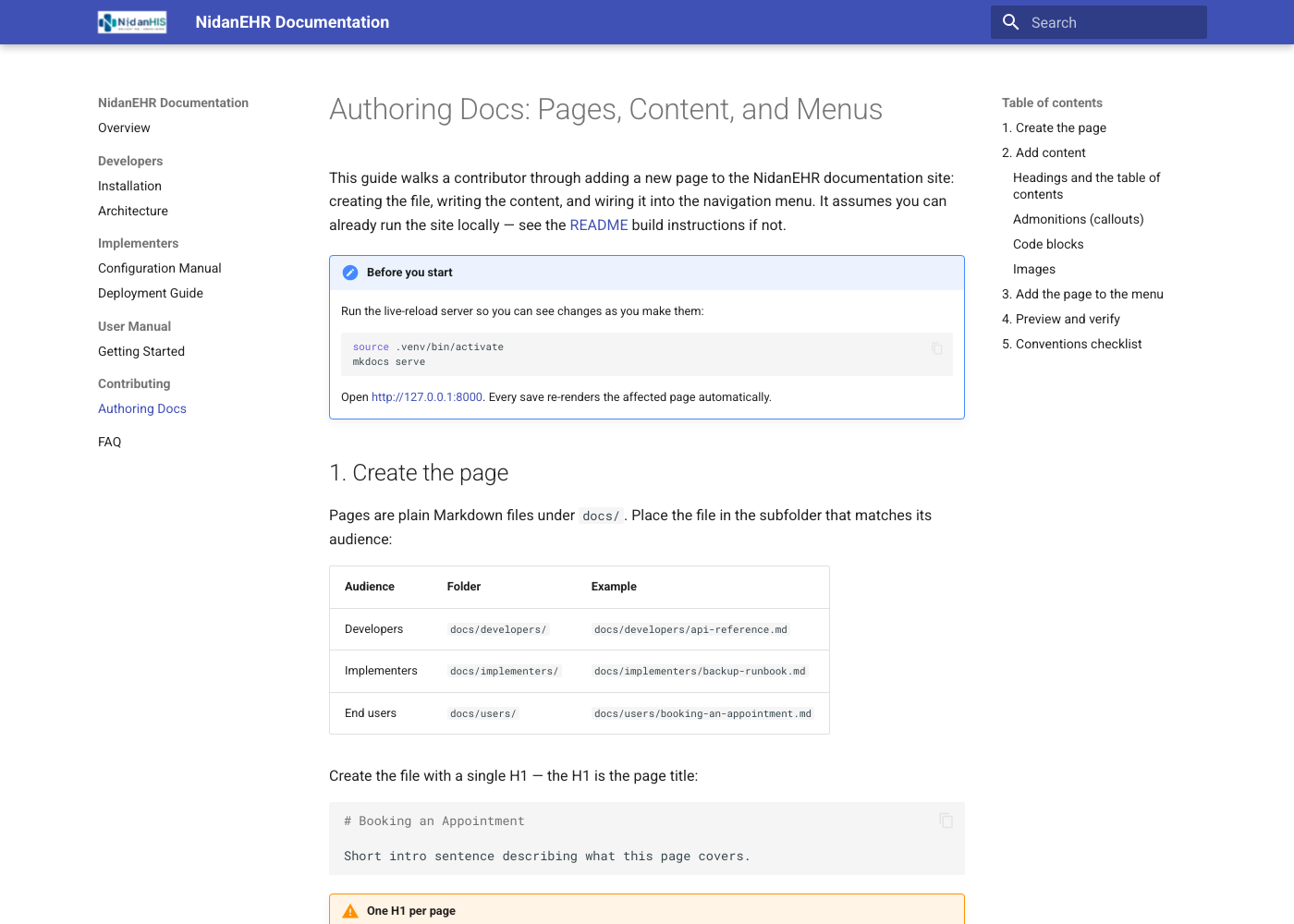
Rendered layout example showing header elements and left-hand section navigation:
3. Add the page to the menu
A new file is not visible until you list it in the nav: tree in mkdocs.yml. Open
mkdocs.yml and add an entry under the right section:
nav:
  - Overview: index.md
  - User Manual:
      - Getting Started: users/getting-started.md
      - Booking an Appointment: users/booking-an-appointment.md   # <- new
  - FAQ: faq.md
The text before the colon is the menu label; the path after it is relative to docs/. Each
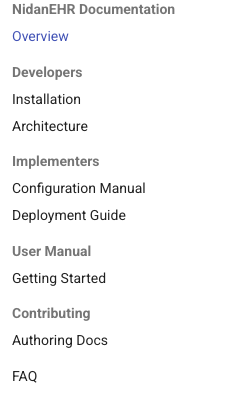
top-level - Name: with indented children becomes a collapsible section in the left sidebar:
Section grouping
The navigation.sections theme feature renders each top-level group as a labelled section.
Order in the file is the order in the menu - there is no automatic alphabetisation.
4. Verify links and navigation
The dev server updates immediately. Before committing changes, run a strict build to check for broken links and orphaned navigation items:
mkdocs build --strict
The --strict flag converts warnings (such as dead links or invalid nav files) into build failures to prevent deploying broken pages.
5. Conventions checklist
Before opening a pull request, confirm:
- [ ] Exactly one H1, matching the page's purpose.
- [ ] Page lives in the correct audience folder.
- [ ] Page is listed in
nav:inmkdocs.yml. - [ ] Images are in
docs/assets/images/and referenced by relative path. - [ ] No secrets, client configs, internal hostnames/IPs, or patient data.
- [ ] Implementer/deployment pages state the NidanEHR version they apply to.
- [ ]
mkdocs build --strictpasses.
Docs gate
A change that alters what a user or implementer does does not merge without its docs delta. User-facing change → user manual page; config/deployment/integration change → implementer page.